Quiz Results Page Examples: Design High-Converting Interactive Assessments & Scorecards
If you are looking for quiz results page examples that go beyond basic percentages and throwaway trivia, here is how you can design an executive-grade results experience.
When someone completes an interactive assessment or quiz on your website, they have just given you their undivided attention for several minutes. They answered your questions, reflected on their situation, and hit “Submit.”
What they see in the next five seconds determines what happens next.
Will they feel like they just took a throwaway online quiz? Or will they feel like an expert just handed them a personalized, executive-level diagnostic?
A well-crafted results page is the difference between a high-bounce lead magnet and a powerful client engagement engine. That’s why we give you modern, visual layouts tailored to the exact type of assessment you run.
Here is a practical guide to the new header layouts, how to choose the right one for your assessment, and how to customize it to deliver maximum value to your respondents.
Whether you use lead generation quizzes to attract prospects or in-depth scorecards to onboard consulting clients, your header is the prime real estate. It should immediately answer three burning questions for the respondent:
- Where do I stand right now? (Overall score, tier, or archetype)
- What are my biggest strengths? (What is already working well)
- Where should I focus next? (Priority growth areas)
With the header designs in Evalinator, your respondents get those answers in a single glance. No scrolling required.
Under your assessment’s Results Settings, you can choose between four primary presentation styles:
1. Score Circle (Classic Minimalist)
- What it looks like: A clean circular progress ring showing the overall score, followed by your rating band badge.
- Best for: Fast, top-of-funnel lead generation quizzes and quick assessments where you want a crisp, uncluttered summary before diving into detailed narrative feedback.
2. Speedometer Gauge (Classic Focused)
- What it looks like: An intuitive color-coded gauge dial (red to yellow to green) with an animated needle pointing directly to the respondent’s score.
- Best for: Readiness checks, maturity indexes, and risk evaluations where people intuitively understand “where the needle is pointing.”
3. Balanced Overview (Executive Insights)
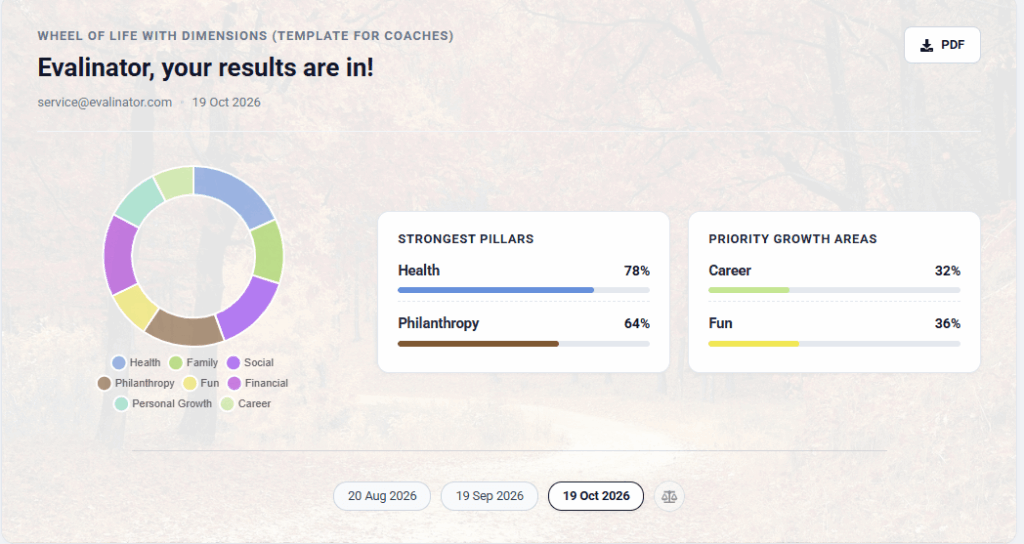
- What it looks like: A dual-column layout. The left column highlights their Performance Rating Tier or Top Scored Dimension in a prominent badge. The right column showcases their Ranked Pillars (Top Strengths and Priority Growth Areas) with clean visual progress bars.
- Best for: Assessments with multiple pillars or categories where you don’t need a central chart, but want to spotlight high-level strengths and weaknesses immediately.
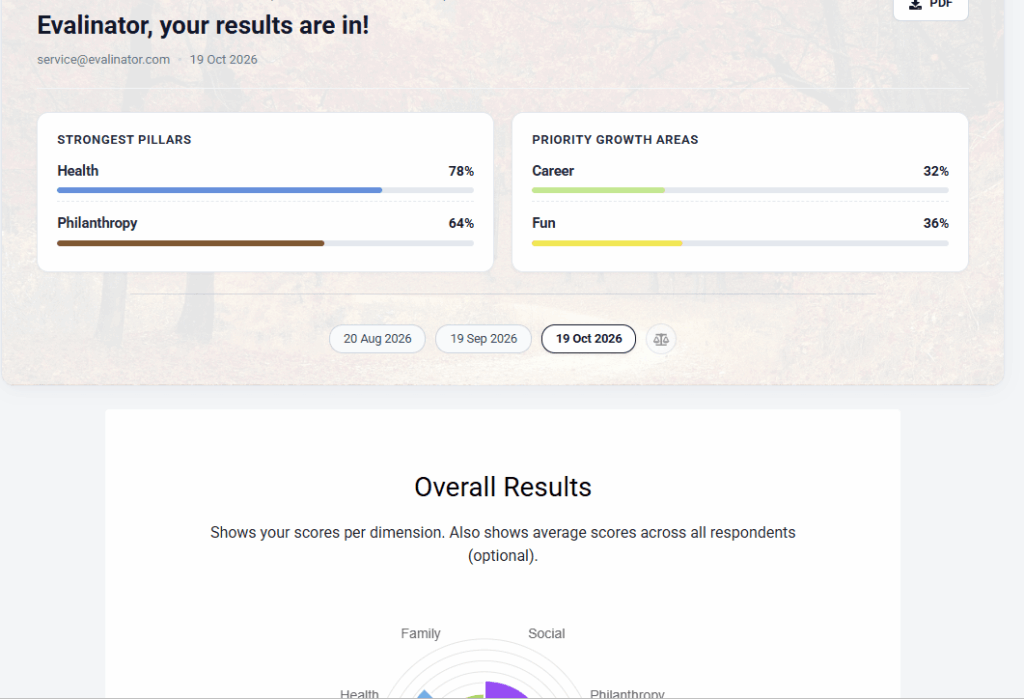
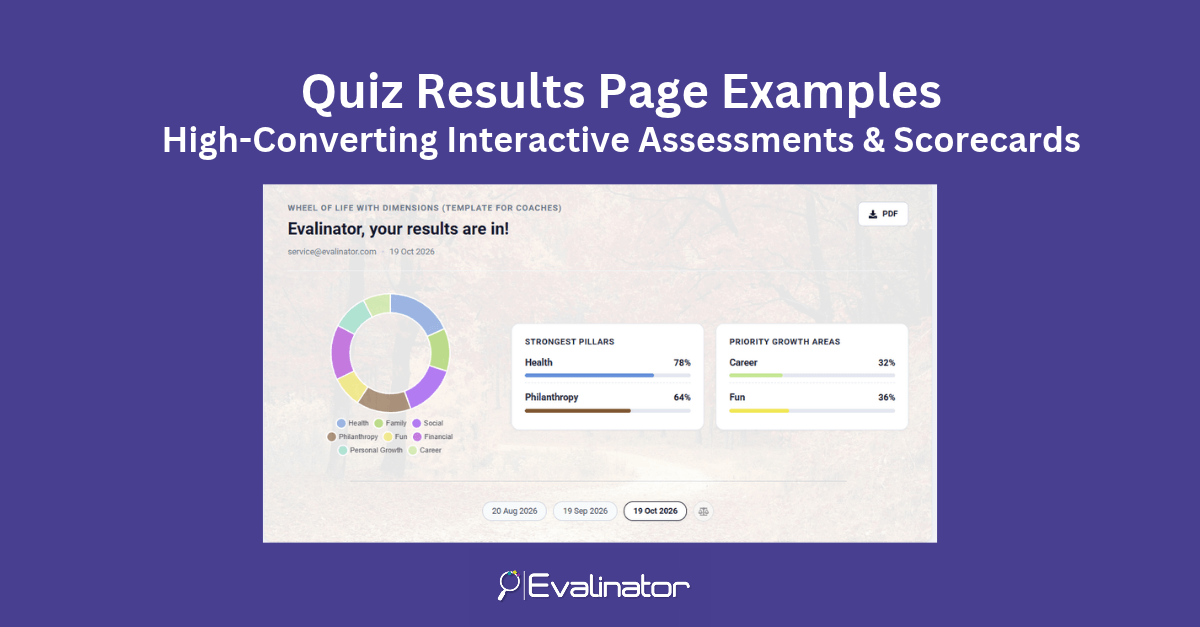
4. Executive Summary (The All-in-One Hero)
- What it looks like: A comprehensive, consulting-grade scorecard. The left side features an interactive visual chart (speedometer, category doughnut, wheel, or horizontal bars) anchored by their tier badge. The right side features their ranked strengths and growth pillars.
- Best for: High-value consulting assessments, professional audits, and detailed coaching diagnostics. It gives your results page the look and feel of a premium, bespoke report.
No two assessments are the same. Here is how you can match these layouts to the specific format of your interactive assessments:
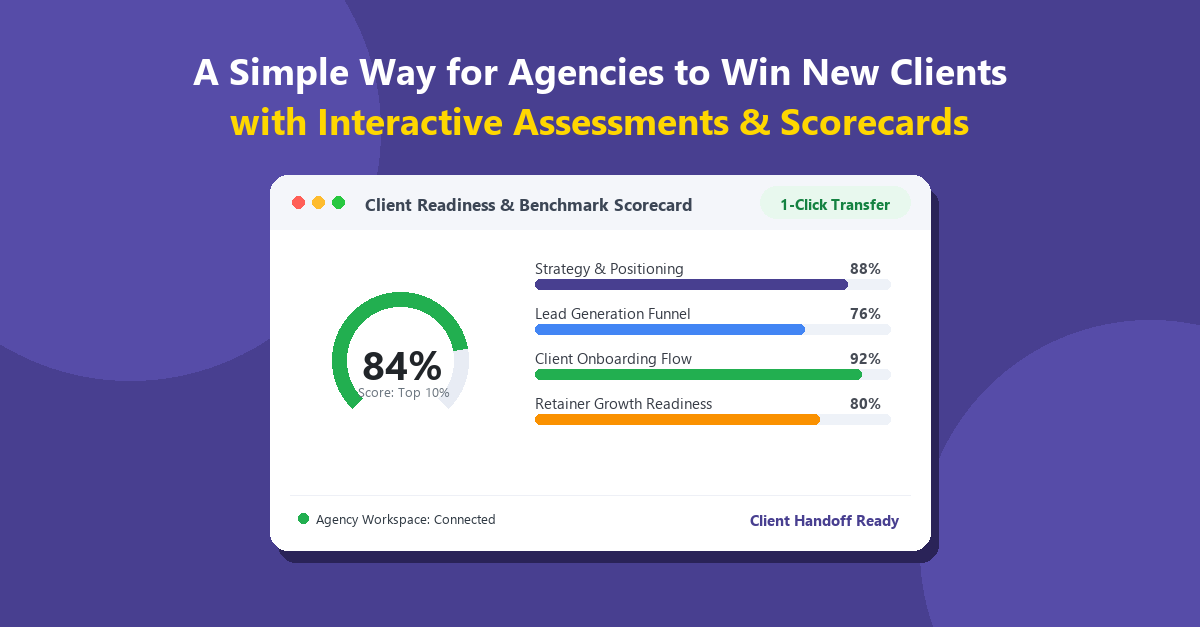
Scenario A: Scored Assessments (e.g., Business Readiness, Security Audits)
- Recommended Layout: Executive Summary with a Speedometer Gauge.
- Why it works: Numerical scores mean more when placed in context. A speedometer instantly shows where someone sits on the spectrum from beginner to advanced.
- Pro-Tip: Toggle Show Maximum Score on so respondents clearly understand context (e.g.,
Score: 68 / 100).
Scenario B: Wheel of Life & Multi-Pillar Assessments
- Recommended Layout: Balanced Overview OR Executive Summary with a Category Doughnut or Wheel Chart.
- Why it works: When assessing 4 to 8 distinct dimensions (e.g., Mindset, Health, Finances, Relationships), respondents care deeply about balance.
- Customization Tip: Under Pillars & Growth Highlights, set the display mode to Top 1 & Bottom 1 or Top 2 & Bottom 2. This automatically celebrates their strongest pillar while highlighting the exact area requiring their immediate attention.
Scenario C: Personality & Archetype Quizzes
- Recommended Layout: Balanced Overview.
- Why it works: Personality quizzes are about identity, not numerical test scores. Layout 3 lets you hide overall numeric scores completely and place the respondent’s assigned Profile Archetype (e.g., “The Strategic Architect” or “The Visionary Builder”) front and center in a beautiful colored crest.
- Customization Tip: Under Chart & Visual Style, ensure Show Applicable Result Band is enabled so their archetype badge takes center stage.
Scenario D: Simple Single-Metric Lead Magnets
- Recommended Layout: Score Circle.
- Why it works: If your quiz is a lightweight lead magnet (e.g., a 5-question “What is your Marketing IQ?” quiz), you don’t need multi-column cards. A clean score circle delivers the payoff instantly and keeps attention focused on your call-to-action button below.
Spotlight on Client Retention: The Iteration Timeline
One of the most effective ways to turn interactive assessments into long-term client engagement tools is to encourage repeat attempts.
Whether your clients retake an assessment every month to track coaching goals or re-audit their business quarterly, the header now includes an Iteration Timeline:
- Automatic History: Past attempts appear as chronological pill badges displaying the date, score, and tier achieved.
- Side-by-Side Comparison (⚖): Clients can click the compare icon to see a visual overlay of how their scores have grown across iterations.
- Clean Experience for First-Timers: If someone is taking your assessment for the first time, the timeline stays hidden automatically so it never clutters their screen.
- Author Override: Even if you choose to keep the timeline hidden from respondents, as the assessment author or coach you can always see past attempts to analyze client progress during review sessions.
You can configure your header in just a few clicks inside the Evalinator assessment builder:
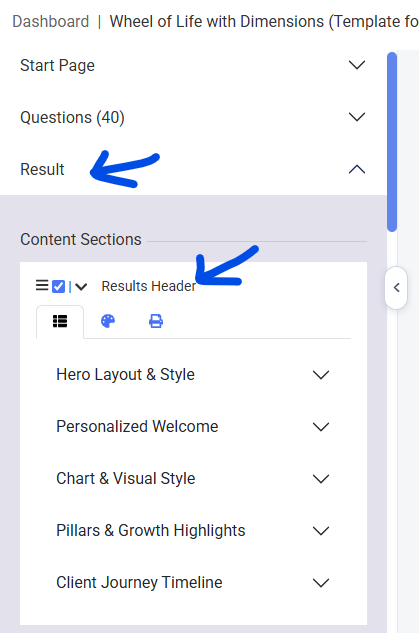
- Navigate to the Result tab in your assessment editor
- Open the Section called Results Header:
- Select Your Layout: Under Hero Layout & Style, choose your preferred layout style (Score Circle, Speedometer, Balanced Overview, or Executive Summary).
- Fine-Tune Your Display:
- Chart & Visual Style: Pick your chart type, toggle total/maximum scores, and choose whether to display the rating band or primary dimension badge.
- Pillars & Growth Highlights: Choose how many top and bottom pillars to highlight, and customize the section labels (e.g., rename “Strongest Pillars” to “Key Strengths”).
- Personalized Welcome: Add a personalized greeting using merge fields like
Hello {{respondent_first_name}}, here is your tailored action plan!.
Final Thoughts: Turn Results into Relationships
Your results page shouldn’t be a dead-end; it should be the beginning of a conversation.
By presenting respondents with an executive-grade summary that clearly outlines their standing, validates their strengths, and spotlights their growth areas, you establish trust and authority in seconds.
Try switching your current assessment to Balanced Overview or Executive Summary, and see how elevated your results page looks!
When looking at the most effective quiz results page examples, the common thread is clear: the results don’t end the conversation—they start one.
If you haven’t already, take advantage of the 2 week risk-free trial, and start growing your business today.
Find Your Lead Generation Score
Feeling frustrated with lead generation?
Take this free, 5-minute quiz and
get more prospects into your leads funnel.
Instant Results. Actionable recommendations. Email required.
Find Your Score >>