When you’re building an assessment as a coach, consultant, or advisor, not every question is meant to “score” someone.
Some questions are purely informational:
These questions are incredibly valuable, but they shouldn’t affect someone’s results.
That’s why we added new configuration options in Evalinator that let you separate scoring from information gathering, while still keeping the results experience clean and useful.
This post walks through what’s new, why it matters, and how to use it.
Many assessments lose accuracy because the creator includes too much context in the scoring model.
A demographic question like “What is your job title?” is useful, but it should not change someone’s readiness score.
Now you can include those questions without worrying about distorting results.
Participants are more likely to complete an assessment if it feels personalized and relevant.
Non-scoring questions help you gather information that lets you tailor:
And since they don’t affect scoring, users don’t feel like they’re being graded unfairly.
Sometimes you want certain sections to show in results (like actionable dimensions), and sometimes you don’t (like demographics).
Now you can hide entire dimensions from the results page without deleting them.
Not all dimensions should carry equal weight.
For example:
Dimension weights allow you to reflect real-world importance without redesigning your entire question structure.
Evalinator now supports three important configuration options:
A dimension can be marked as non-scoring so it:
You can choose whether a dimension appears on the results page.
If enabled, Evalinator can show the dimension along with the questions inside it.
Each dimension can be assigned a weight:
This weight is used when calculating the overall score for assessments configured to use dimension-based weighting.
Below are the steps to configure questions and dimensions using the Options panels.
Go to your assessment editor and open the Questions view.
Find the question you want to configure and click Question Options
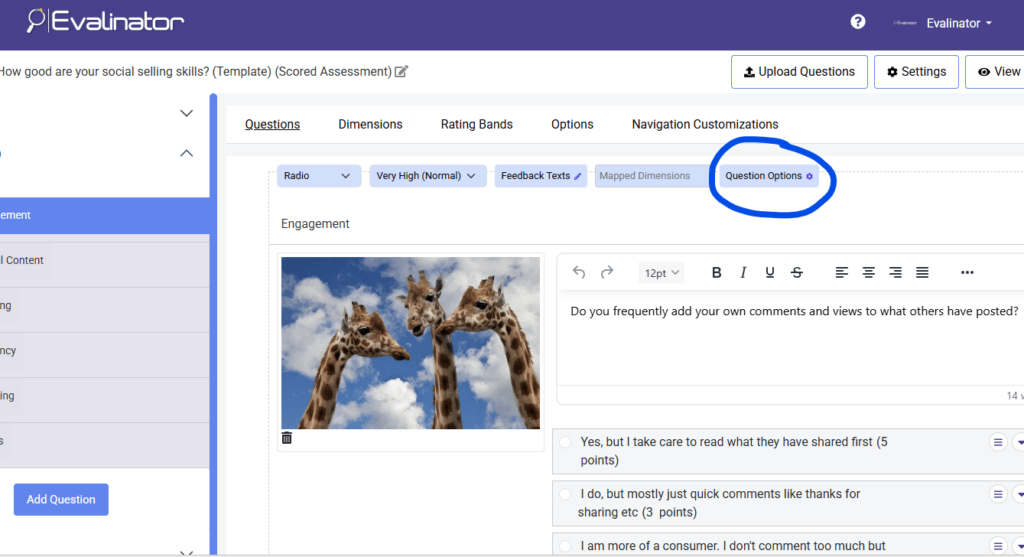
Inside the Question Options panel, toggle: Include in scoring
Turn this ON if the question is informational only. In the same options panel, choose whether the question should appear on the results page.
Examples of good non-scoring questions:
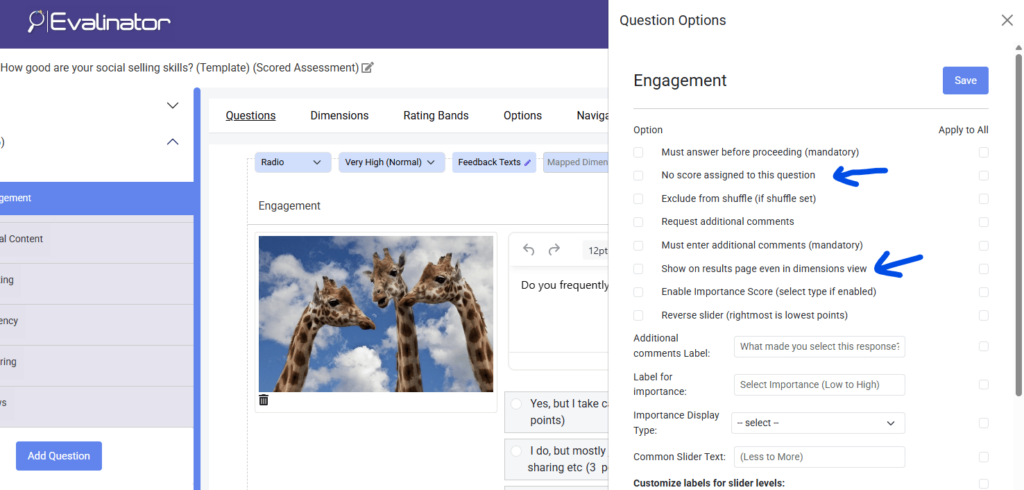
This lets you collect valuable context without changing the assessment results.
Now let’s look at the dimension-level controls, which are especially useful for organizing demographic questions.
Go to the Dimensions section of your assessment.
Next to each dimension, click: Options
This opens the dimension configuration panel.
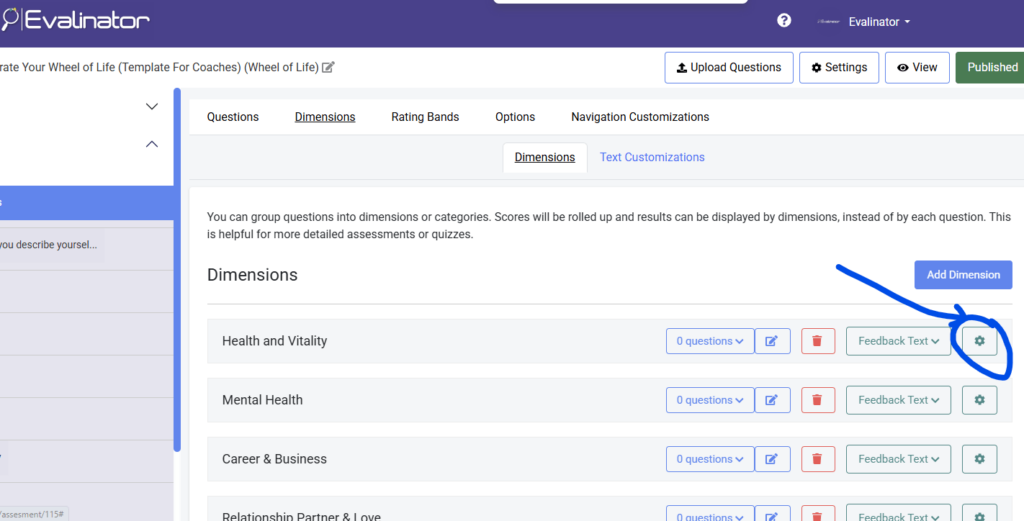
If you want to create a Demographics or Context dimension, this is the key setting.
Toggle: Include in scoring
Turn this OFF to make the dimension non-scoring.
Once a dimension is non-scoring:
This is ideal for:
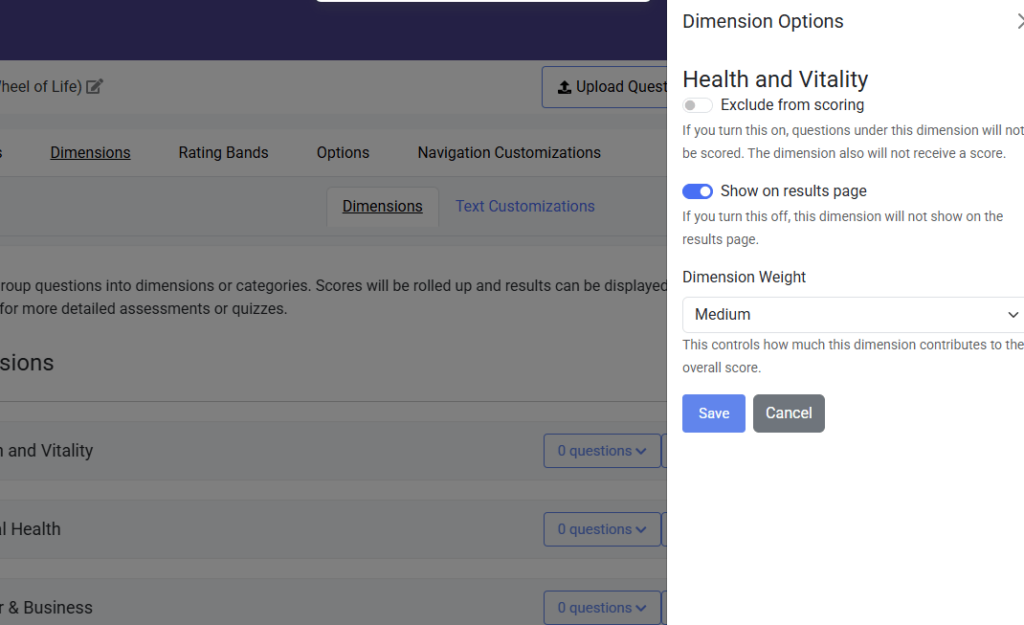
In the same panel, toggle:
Show on results page
Turn this OFF if you want the dimension excluded from the results view.
This is especially useful when:
If you keep the dimension visible, Evalinator can display:
This is useful when the dimension represents a meaningful category (even if it is non-scoring) and you want participants to reflect on their answers.
If the dimension is scoring-enabled, you can assign a weight:
This allows you to reflect importance across dimensions without overcomplicating question weights.
Example:
These options may seem small, but they unlock a more professional assessment-building workflow:
If you’re using assessments as part of your business (coaching, consulting, workshops, sales funnels, onboarding), these controls give you much more flexibility.
If you haven’t tried Evalinator yet, you can start a 2-week trial and explore these features yourself.
Create an assessment, add a demographics dimension, experiment with scoring and results visibility, and see how it improves the user experience.
Start your free 2-week trial today
Feeling frustrated with lead generation?
Take this free, 5-minute quiz and get more prospects into your leads funnel.
Instant Results. Actionable recommendations. Email required.
Find Your Score >>